How to Share Password Protected Videos Securely
How to Share Password Protected Videos Securely

Use a link-level password gate plus an expiry date, or a single-use link, to share a video securely. Upload the file, create a share link, turn on password protection, and send the link and password through separate channels. That combination covers the two failure points that trip up most creative teams: an unlisted link that leaks, and a password that never changes.
Here’s the four-step version:
- Upload the video and confirm it finished processing before sending anything.
- Create a share link rather than relying on a public URL.
- Enable password protection, and add expiry or single-use rules for sensitive cuts.
- Send the link and password separately (email plus text, or a project tool with built in access control).
Pro Tip: Platforms like Vimeo and Loom gate playback at the video level, while link-level tools let you issue a different password to every client from the same source file. Posthive fits into this as a production-grade option built for versioned review, letting teams issue secure share links without re-uploading footage every time a cut changes.
Key Takeaways
Link-level password protection with expiry or single-use rules gives creative teams more reliable control over video access than a single shared video-level password.
| Point | Details |
|---|---|
| Choose link-level over video-level | Assign a unique password per client or recipient so one leak doesn’t compromise every share. |
| Layer expiry and single-use rules | Set links to expire or work once for sensitive drafts and pre-release material. |
| Test embeds separately | Confirm the password prompt actually appears inside embedded players, not just the native viewer. |
| Revoke by rotating the link | Regenerate or change the password immediately when access needs to be cut off. |
| Posthive centralizes the workflow | Project-scoped share links, version history, and viewer tracking live in one workspace instead of scattered tools. |
Table of Contents
- What Are the Main Ways to Password Protect a Video?
- How Do You Add, Test, and Revoke a Video Password?
- Is a Password Enough, or Do You Need More Protection?
- How Posthive Handles Secure Video Delivery for Production Teams
- Which Approach Should Creative Teams Prioritize First?
- Share Video Reviews Securely Without Extra Steps
- Where to Confirm These Steps Yourself
- Frequently Asked Questions
- Sources
What Are the Main Ways to Password Protect a Video?
Four approaches cover almost every real-world scenario, and picking the wrong one is usually a mismatch between how much control you need and how much setup you’re willing to do.
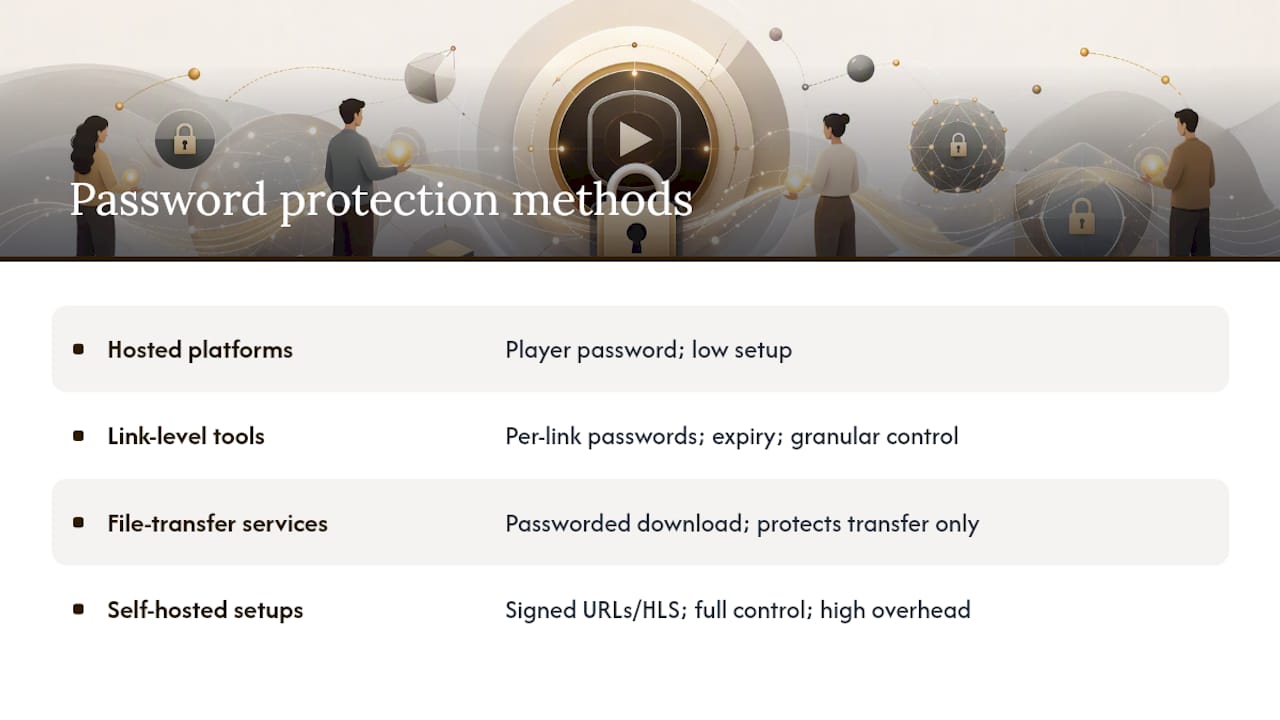
Hosted platforms like Vimeo and Loom bake password protection into the video settings itself. You toggle a password on, viewers get prompted before the player loads, and the same password applies no matter who clicks the link. This works well for teams that already embed players on a website or in a client portal and don’t need different rules per recipient.
Link-level share tools separate the password from the video file. A service such as vitelnk lets you generate multiple links to the same video, each with its own password, expiry date, or single-use restriction. That matters when you’re sending the same rough cut to three clients who shouldn’t see each other’s feedback threads, or when a temp employee needs seven days of access and no more.
File-transfer services like WeTransfer solve a narrower problem: getting a large file from point A to point B with a password on the download itself. They’re fast and familiar, but the password protects the transfer, not the playback — once someone downloads the file, there’s no gate left standing.
Self-hosted setups using S3 buckets, signed URLs, and HLS streaming give you full control over storage, encryption, and expiry logic. Threads on communities like r/selfhosted show this is a common ask among technical teams who want to avoid third-party dependencies entirely, but it comes with real engineering overhead: you’re now maintaining infrastructure instead of shipping cuts.
Match the method to the job. Client review calls for link-level control. A one-off transfer to a colleague is fine with a password-protected download. A course platform gating hundreds of lessons probably needs a hosted solution or a signed-URL setup built for scale.
How Do You Add, Test, and Revoke a Video Password?
The exact buttons differ across platforms, but the sequence is nearly identical everywhere.
- Upload or locate the video, and confirm it’s finished processing. A file still transcoding won’t reliably enforce a password gate, and testing too early gives false results.
- Create a share link. If the platform offers link-level controls, generate a new link rather than reusing an existing public one.
- Configure the password rules. Set a strong password, then decide whether you need an expiry date, a single-use restriction, or viewer registration on top of it. vitelnk’s documentation walks through this exact sequence: upload, create link, enable password, send.
- Test it in a private browser window, and separately inside any embed where the video will actually live. Some platforms honor the password prompt inside embeds; others don’t, so this step catches the gap before a client does.
- Rotate or revoke when needed. Regenerate the link or change the password to cut off access immediately, and keep a short log of who had which link and when it changed.
Pro Tip: Generate a poster frame or preview thumbnail as part of your test pass. Cloudinary’s preview tools are built for exactly this: confirming the file processed correctly before you send anything to a client.
Before sending, run through a short checklist: who needs to be notified of the new password, whether the password itself avoids anything guessable (no project names, no client initials), and whether this particular video is sensitive enough to warrant authenticated viewer access instead of a shared password.
Is a Password Enough, or Do You Need More Protection?
A password protects the gate, not necessarily the file behind it. Once a viewer is in, they can usually still screen-record, download if the option exists, or forward the password to someone else entirely. That’s not a flaw in password protection, it’s just the boundary of what the feature is designed to do.

The most common failure modes aren’t exotic. Someone reuses the same password across every client for months. A link gets pasted into a group chat instead of sent privately. An embed on a third-party site doesn’t honor the password prompt the way the native player does, something worth confirming during testing rather than assuming.
Layering additional controls closes most of these gaps:
- Expiry dates so a link stops working after a review window closes.
- Single-use links for one-time approvals where reuse should never happen.
- Signed URLs and private storage buckets for self-hosted setups, which keep the raw file inaccessible without a valid, time-limited token.
- Viewer registration or authentication when you need to know exactly who watched a file, not just that someone did.
- DRM and watermarking for the highest-risk content: unreleased trailers, festival submissions, anything where a leak carries real financial or reputational cost.
A simple decision guide: password plus expiry is enough for routine client review and internal drafts. Move to authenticated viewer access or an enterprise workspace when the content is pre-release, high-budget, or under an NDA that specifically names distribution restrictions. Link-level rules that vary by recipient give you that flexibility without forcing every project into the same security tier.
How Posthive Handles Secure Video Delivery for Production Teams
Posthive builds password-gated sharing into the same workspace where teams already manage versions and approvals, instead of treating secure delivery as a separate step. Every share link is project-scoped, so a password change or revocation applies without re-uploading footage or breaking an existing embed.
In practice, that looks like issuing a one-week review link to a client, regenerating it the moment a password needs to change, and seeing exactly who opened which version, all from the same project. Teams get:
- Per-link password controls tied to a specific project, not the whole account.
- Version history that stays attached to the link, so a revoked password doesn’t mean re-sending files.
- Viewer tracking that shows which cut a client actually reviewed.
Fewer manual re-uploads and one place to track comments, approvals, and access. That combination is what most password protected video sharing setups are missing.
Pro Tip: When a client’s review window closes, revoke the link instead of leaving it live “just in case.” Posthive lets you do that without touching the underlying file or project structure.
Which Approach Should Creative Teams Prioritize First?
Most advice on this topic treats password protection like a checkbox: turn it on, move on. That undersells how much the type of control matters more than the password itself. A single video-level password shared with six clients is barely more secure than no password, because the moment one recipient forwards it, you’ve lost track of who actually has access.
The bigger blind spot is embeds. Teams assume that because a video is “password protected” on the host platform, it stays protected everywhere it’s displayed. That’s not always true, and the only way to know for sure is testing it inside the actual embed, not just the native player.
If you take one thing from this, prioritize link-level control over video-level passwords whenever you’re dealing with more than one recipient. It costs nothing extra in most tools, and it means one compromised client relationship doesn’t force you to reset access for everyone else.

Share Video Reviews Securely Without Extra Steps
Posthive gives creative teams and production companies one workspace for the whole review cycle: version control, task tracking, and secure share links that don’t require a separate tool just to gate a password. If you’re managing client feedback across multiple cuts and multiple recipients, the advantage isn’t just the password gate, it’s that revoking access, tracking versions, and logging viewer activity all happen in the same place you already manage the project.
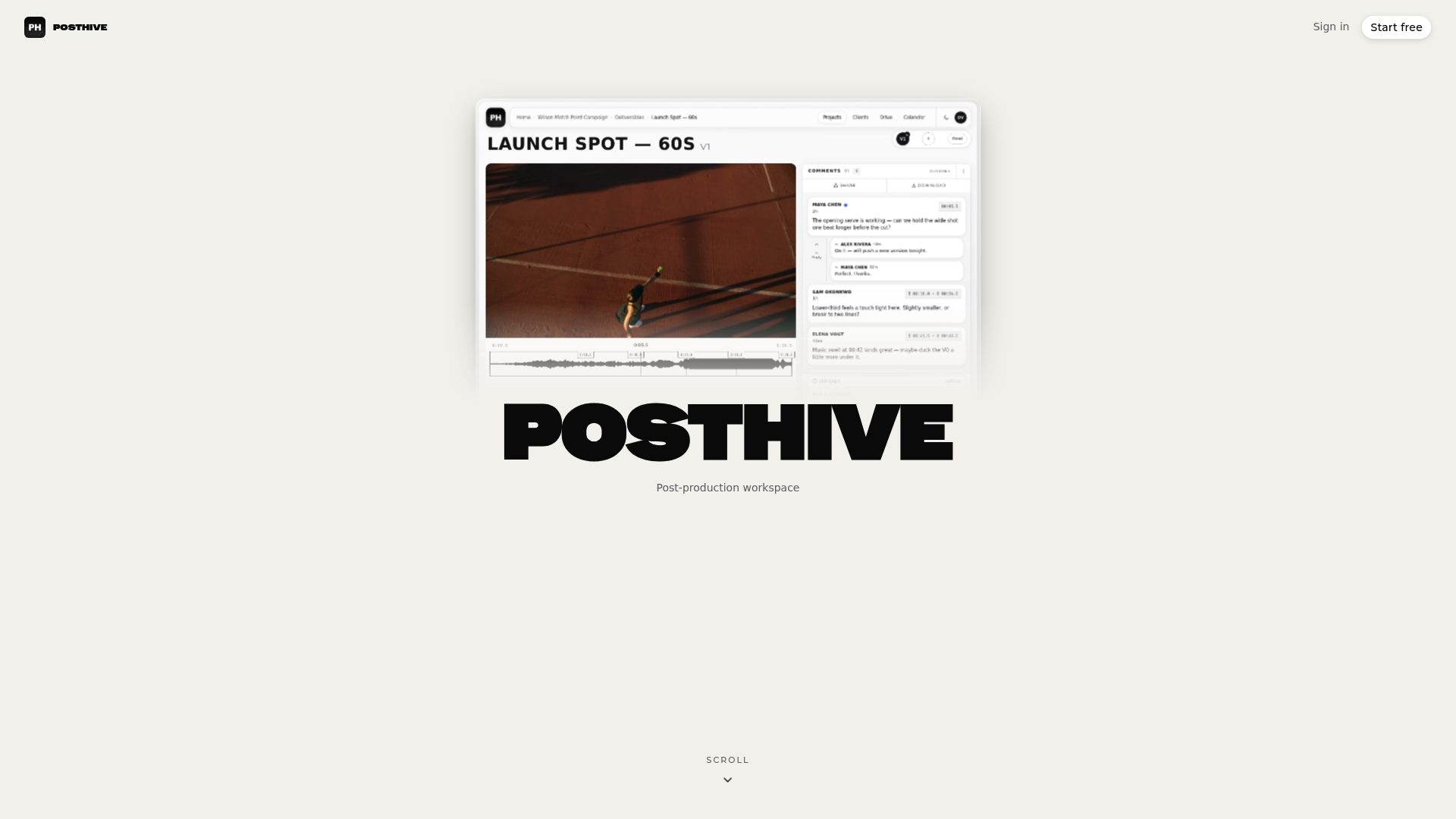
That matters most for teams juggling several active projects at once, where re-uploading a file every time a link needs to change eats real time. Start a project on Posthive and set up your first password-protected share link to see how version tracking and access control work together in one workspace.
Where to Confirm These Steps Yourself
For exact UI steps, check Vimeo’s password help article and Loom’s Link Settings documentation. For link-level passwords, expiry, and single-use rules, see vitelnk’s feature guide. Cloudinary’s preview documentation covers generating thumbnails to verify processing before you test a password gate.
Frequently Asked Questions
Does a password on a video also protect against downloads? Not automatically. A password gates playback, but if the platform allows downloading, anyone with the password can save the file. Check the platform’s download settings separately.
Do password prompts work inside embedded players? It depends on the platform. Vimeo’s password prompt generally carries over into embeds, but you should always test inside the actual embed before relying on it, since behavior isn’t universal across every tool.
How often should I change a shared video password? Rotate the password whenever a review window closes, a team member leaves a project, or you suspect the link was shared beyond the intended recipient. For ongoing projects, rotating passwords regularly is a common good practice.
Is a strong password alone enough for confidential footage? For routine client review, yes. For pre-release, NDA-covered, or high-budget content, combine password protection with expiry, single-use links, or authenticated viewer access instead of relying on the password alone.
What’s the difference between video-level and link-level password protection? Video-level protection applies one password to the video no matter who requests it. Link-level protection lets you generate separate links, each with its own password, expiry, or usage limit, which makes revoking one recipient’s access simple without affecting anyone else.
Sources
- How to password-protect a video – Vimeo Help Center
- Protect your videos with a password | Loom | Atlassian Support
- Password Protect a Video — Per-Link Passwords, Expiry & Viewer Tracking | vitelnk
- Video previews and posters | Cloudinary